How to restore a Shopify store from a backup
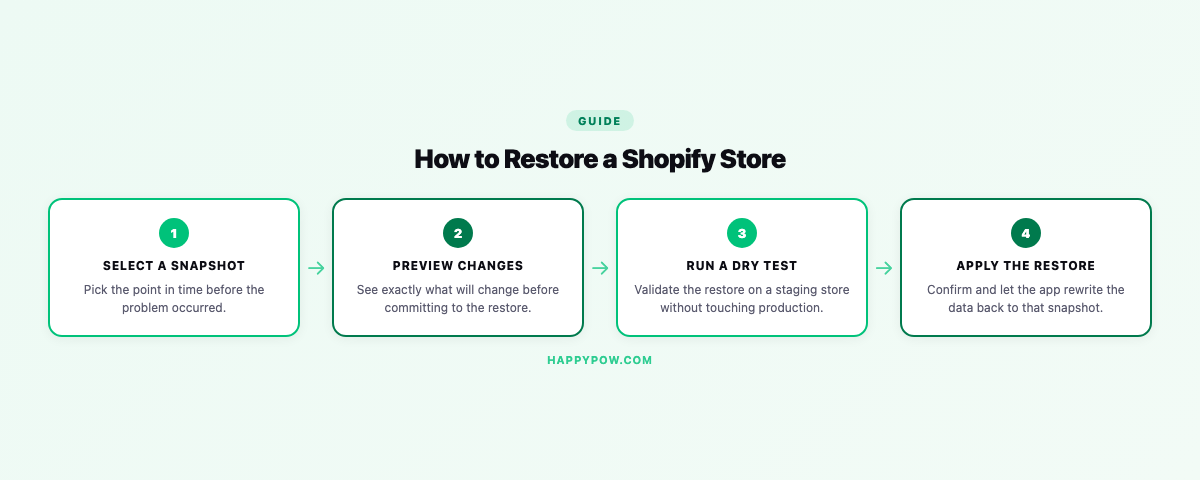
To restore a Shopify store you pick a backup version, dry-run it to preview the change, choose what to bring back, then run it so the store becomes identical to that moment. Taking backups is the easy half; the half that matters is the morning you need one back. A restore that is slow, partial, or unpredictable turns a small mistake into a long day, so it is worth knowing how a good one works before you are standing in the middle of an incident.
First: identify what actually broke
Before you touch a restore, name the problem precisely. A single deleted product is not the same job as a corrupted theme or a bulk edit across the catalog. Knowing what broke tells you the scope to restore and which version to restore from, which keeps you from rolling back more than you need.
Point-in-time, not "import a file"
A proper restore is point-in-time: you pick a version and the store becomes identical to that moment, including rolling back items edited since. That is different from importing a CSV, which adds rows without removing the bad edits you are trying to undo. If a tool only imports, you are doing half a restore and cleaning up the rest by hand. The concept is worth understanding on its own; see point-in-time restore explained.
Step by step: restoring a Shopify store
- Open your backup history and find the last version from before the incident.
- Select the scope: the whole store, or just the data types that broke.
- Run a dry-run to preview exactly what will change.
- Set the conflict policy: skip existing items, or overwrite them.
- Confirm and run the restore.
- Verify the recovered area on the live storefront.
Dry-run first
Before anything is written, a dry-run shows what the restore would change: what gets created, overwritten, or skipped. You read it, confirm it matches your intent, then run it for real. Restoring blind on a live store is how a recovery becomes a second incident. Treat the dry-run as mandatory, not optional.
Choose the scope
You rarely need the whole store back. Restore only what broke: a single collection, the theme, a set of products. Granular restore keeps untouched data untouched, so the edits your team made elsewhere today are not wiped out by a recovery for one mistake. Pick the smallest scope that fixes the problem.
Conflict policy
When the restore meets items that still exist, it either skips them or overwrites them. Decide which before you run. Overwrite forces the store back to the backup state, which is what you want when undoing a bad edit. Skip adds back only what is missing, which is what you want when recovering a deletion without touching everything else.
Restoring specific things
Most real recoveries are one of these, and each has a focused guide:
- A bulk edit went wrong: undo a bulk edit in Shopify.
- A product was deleted: recover a deleted product.
- A collection vanished: recover a deleted collection.
- The theme broke: restore a broken Shopify theme.
- Customer or order data was lost: recover deleted customers and orders.
After the restore
Spot-check the area you recovered, confirm the storefront renders, test checkout if orders or products were involved, and note what caused the incident so the next one is a checkpoint away. The fastest recoveries are the ones where someone took a manual checkpoint right before the risky change; build that habit and read how often should you back up a Shopify store.
Common mistakes
- Restoring without a dry-run, then overwriting good data alongside the bad.
- Rolling back the whole store when only one collection broke.
- Choosing the wrong conflict policy and either duplicating or wiping items.
- Discovering at restore time that the backup never covered metafields or themes.
FAQ
Can I restore a Shopify store to a previous version? Not through the admin; Shopify has no native rollback. You need a backup tool that supports point-in-time restore.
Will a restore overwrite my current data? Only if you choose overwrite as the conflict policy. Skip leaves existing items untouched and adds back only what is missing.
How do I restore just one product or collection? Use granular restore: select only that data type or item, dry-run, then run.
Restore with confidence
HappySnap restores are point-in-time with a dry-run and a skip-or-overwrite policy, granular down to a single data type. See HappySnap or step back to the Shopify backup pillar.