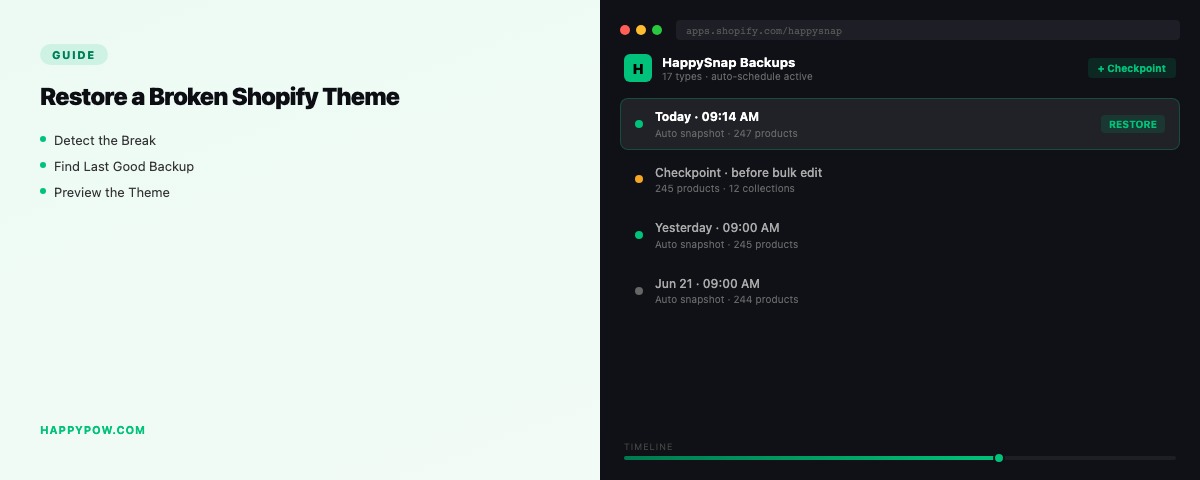
How to restore a broken Shopify theme
To restore a broken Shopify theme you either revert the bad file in the theme editor's change history or, if the damage is bigger, restore the theme from a backup taken before the change. A storefront goes sideways after a theme edit, an app injection, or a half-finished customization, and how fast you recover depends on how bad it is and what you kept.
What Shopify keeps, and what it does not
Themes are one of the few areas where Shopify gives you partial history. The theme editor tracks recent changes to individual files (Online Store, Themes, Edit code), so a single bad edit can sometimes be reverted there. You can also duplicate a theme before working on it, which is a manual fallback. What none of that covers: a deleted theme, a change that slipped past the history window, or theme settings and content that live outside the code files.
Step by step: fix a broken theme
- Do not publish more changes. If the broken theme is live and you have a known-good duplicate, publish that to stop the bleeding.
- Try the editor's recent changes first: open the affected file in Edit code and revert the specific edit.
- If the file is gone or the history does not reach far enough, restore the theme from a backup taken before the change.
- Dry-run the restore so you can see exactly which files and settings will change.
- Run it, then load the storefront and click through the templates that broke.
The full restore flow is in how to restore a Shopify store and point-in-time restore explained.
The safe way to edit a theme
Prevention is cheaper than recovery. Duplicate the theme or take a checkpoint before you start, work on the copy or with a clear restore point behind you, and publish only when it holds together. The highest-risk moment is letting an app edit theme code; take a checkpoint first and read back up a Shopify store before installing an app.
Cover the whole storefront, not just code
A theme is more than Liquid. It travels with pages, blogs, navigation, files, and translations, and the theme settings that configure it. A backup that saves the code but loses your menus still leaves you rebuilding. Make sure yours captures the lot; see what to back up in a Shopify store.
Common mistakes
- Editing the live theme directly instead of a copy, so a mistake is instantly public.
- Relying on the editor's change history for a change that happened weeks ago.
- Restoring the code but forgetting theme settings, navigation, or translations.
- Letting an app modify the theme with no checkpoint to roll back to.
FAQ
Can I recover deleted Shopify theme code? Recent edits can sometimes be reverted in Edit code's change history; a deleted theme or older change needs a backup.
Does Shopify keep old versions of my theme? It tracks recent file changes and lets you duplicate themes, but it is not full version history. A backup tool covers the gap.
How do I roll back a whole theme? Restore the theme from a backup taken before the change, with a dry-run first to preview the files affected.
Be ready next time
HappySnap backs up themes and storefront content together and restores them point-in-time. See HappySnap or the Shopify backup pillar.