How to back up a Shopify store
To back up a Shopify store you need a tool that takes automatic, versioned copies plus manual save points, because Shopify itself gives you no way to roll back. There is no undo button and no point-in-time restore in the admin. If a bulk edit goes wrong, an app mangles your products, a theme file breaks, or a collection is deleted, the change is live and the previous state is gone. This guide explains exactly how to back up a Shopify store the right way, what to capture, how often, and how to make sure the backup is one you can actually restore.
Does Shopify back up your store?
Shopify runs platform-level infrastructure backups for its own disaster recovery. That is not a backup you control. You cannot ask Shopify to restore your store to how it looked last Tuesday, support cannot un-delete a product for you, and merchant-initiated rollback is simply not a feature of the admin. The responsibility for a recoverable copy of your own data sits with you, and most merchants only learn that the day something breaks.
What you can lose
The blast radius is bigger than products. Any of these can vanish with no native way back:
- Products, variants and collections after a bad bulk edit or a misbehaving app.
- Themes and theme settings after an edit or an app injection.
- Pages, blogs, navigation, files and translations.
- Metafields and metaobjects, which power a lot of custom storefronts.
- Customers, orders and draft orders, which are personal data and need careful handling.
For the full breakdown of every object, see what to back up in a Shopify store.
Why CSV export is not a backup
The admin's CSV export is the first thing people reach for, and it is not enough. It covers only some objects, it is not versioned, restoring it is manual and error-prone, and it loses the references between objects. Re-importing a product CSV gives you rows back, but not the collection membership, metafields, or metaobjects that made the store work. Use CSV for a quick one-off snapshot of products. For an actual backup system, you need a dedicated app.
The two ways to back up: snapshots and checkpoints
A real backup tool gives you both, and the difference decides how fast you recover.
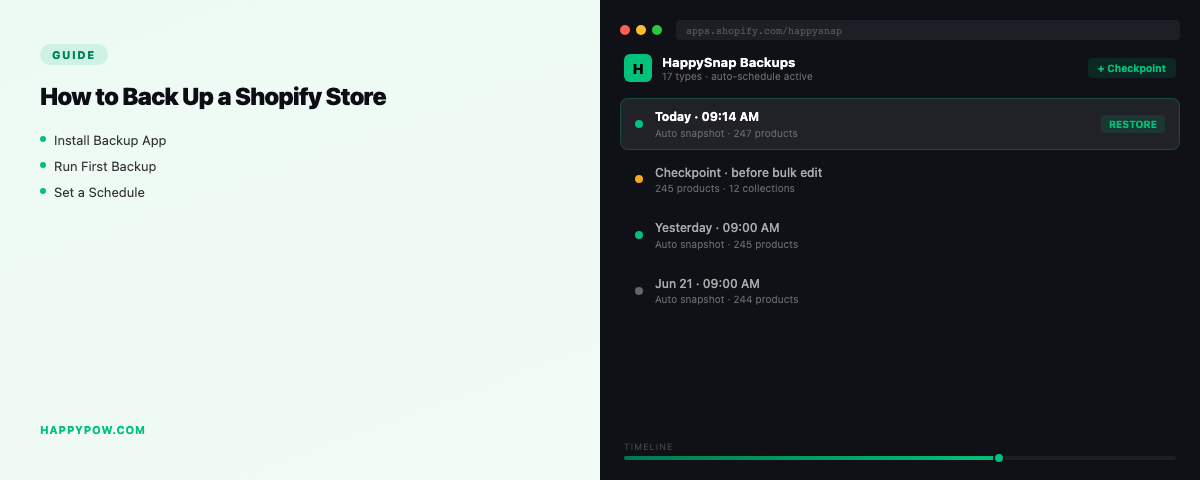
A snapshot is an automatic backup version taken on a schedule. It runs whether or not you remember, and it gives you continuous history. HappySnap takes snapshots from weekly to real-time depending on plan, versioned by content hash and stored append-only, so nothing is ever silently overwritten and you can see what changed between versions.
A checkpoint is a named save point you create on demand, right before a risky change. About to run a bulk price edit across 4,000 products? Take a checkpoint first. If it goes wrong, you restore to that exact moment in one step instead of hunting for what changed. Snapshots cover the mistakes you do not see coming; checkpoints cover the ones you do.
What to back up: 17 data types
Most backup tools grab products and stop. A complete Shopify backup covers all seventeen: products, collections, customers, orders, draft orders, pages, blogs, files, themes, metafields, metaobjects, discounts, translations, navigation, markets, inventory and locations. The ones cheap exporters skip, metafields and metaobjects, are exactly what modern themes read, so a backup without them is not a backup of your store.
How often should you back it up?
Match frequency to how often the store changes. A quiet catalog is fine on daily; a store edited all day wants hourly or real-time so the most you can lose is minutes. Always layer a checkpoint before risky work. The full reasoning, including how to pick your number, is in how often should you back up a Shopify store. The single riskiest moment people forget is an app install: back up before installing an app.
The other half: restore
A backup you cannot cleanly restore is just storage. The restore that actually undoes a mistake is point-in-time: pick a version, dry-run it to preview the change, then roll the whole store or selected types back to that exact state. Read point-in-time restore explained and the full how to restore a Shopify store.
More than recovery: cloning
The same engine that restores a store can copy one. Store-to-store cloning moves a catalog to a new or expansion store, remapping IDs and rebuilding references so nothing breaks. See how to clone a Shopify store.
Step by step: set up backups today
- Pick a backup app that covers all 17 data types and restores point-in-time.
- Turn on automatic snapshots at a frequency that matches your change rate.
- Connect storage you trust, or bring your own cloud bucket, encrypted at rest.
- Take a manual checkpoint before your next risky edit or app install.
- Run a test restore on a throwaway store, so you know the backup works before you need it.
Common mistakes
- Treating CSV export as a backup, then finding it lost every relationship.
- Backing up products only and losing metafields, themes, or navigation.
- Never testing a restore, so the backup is unusable when it counts.
- No checkpoint before a bulk edit or app install.
FAQ
Does Shopify back up my store automatically? Shopify backs up its own infrastructure, but you cannot restore your store from it. Merchant-controlled backup is on you.
Can I back up a Shopify store for free? Partly. CSV export is free but partial and unversioned. A real free option is a backup app with a genuine free tier; HappySnap's free plan does weekly product, content and theme backup with restore.
How do I back up metafields and metaobjects? Use a tool that captures them as part of the store, not a CSV. They are not exported usefully through the admin.
Set it up
HappySnap does automatic snapshots, manual checkpoints, point-in-time restore and cloning across all 17 data types, with no usage cap and bring-your-own storage. See HappySnap, compare it in HappySnap vs Rewind, or step back to the Shopify backup pillar.