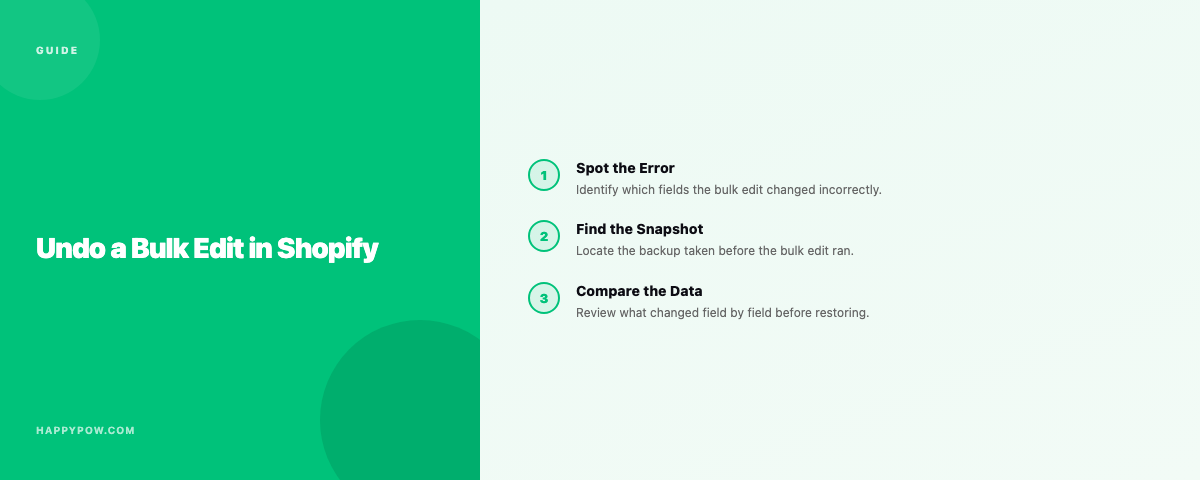
How to undo a bulk edit in Shopify
To undo a bulk edit in Shopify you restore the catalog to a backup version from just before you hit save, because the admin has no undo for bulk changes. You ran the bulk editor, changed the wrong column, and saved across 4,000 products. Whether this is a five-minute fix or a lost afternoon comes down to one thing: were you backing up before the edit.
Why Shopify has no undo for bulk edits
The bulk editor applies changes immediately and keeps no rollback of the previous values. It is a spreadsheet over your catalog, not version control. The moment you save, the old prices, titles, or inventory numbers are gone from the admin, and Shopify's own infrastructure backups are not something you can restore from. This is the same gap behind deleted products and deleted collections: no native rollback, anywhere.
What a bad bulk edit puts at risk
Bulk edits touch the fields that matter most. A wrong column can rewrite prices, compare-at prices, inventory levels, titles, SEO fields, or metafields across thousands of products at once. The scale is the danger: one mistake, applied everywhere, instantly.
Step by step: undo a bulk edit (with a backup)
- Stop editing. Do not try to fix it forward, which only adds more changes to untangle.
- Open your backup history and find the version from just before the edit, or the checkpoint you took before starting.
- Select the scope: just products, or just the fields that changed if your tool supports it.
- Dry-run the restore to confirm only the affected products and fields change.
- Set the conflict policy to overwrite, so the bad values are replaced with the good ones.
- Run it, then spot-check a sample of products against what they should be.
If you took a checkpoint right before the edit, this is a one-step rollback to the exact pre-edit state. The full mechanics are in how to restore a Shopify store and point-in-time restore explained.
If you do not have a backup
The options are thin and none are clean. Check whether an export CSV from before the change exists anywhere; re-importing it can overwrite the bad values, but it will not fix relationships the export never held. Otherwise you are reconstructing by hand from memory, screenshots, and order history. Slow, partial, and exactly the situation a backup prevents.
Prevent the next one
- Take a manual checkpoint before any bulk job. Thirty seconds before saves hours after.
- Run automatic backups daily or faster, so even the edits you forget to checkpoint are recoverable. See how often should you back up a Shopify store.
- Test a small change on a few products before applying it to the whole catalog.
Common mistakes
- Editing forward to "fix" the mistake, multiplying the changes to undo.
- Assuming Shopify support can roll it back. They cannot.
- Re-importing an old CSV and duplicating products because the match column was wrong.
- Having no backup and no checkpoint, so there is nothing to restore.
FAQ
Can I undo a bulk edit in Shopify? Not natively. The admin has no undo for bulk edits; you restore from a backup taken before the change.
Does Shopify keep a history of bulk edits? No. The bulk editor saves over the previous values with no version history.
How do I undo a bulk price change specifically? Restore products from a pre-edit version with the conflict policy set to overwrite, so prices revert to the backed-up values.
Be ready next time
HappySnap takes checkpoints on demand and restores them point-in-time, so a bad bulk edit is a one-click rollback. See HappySnap or the Shopify backup pillar.