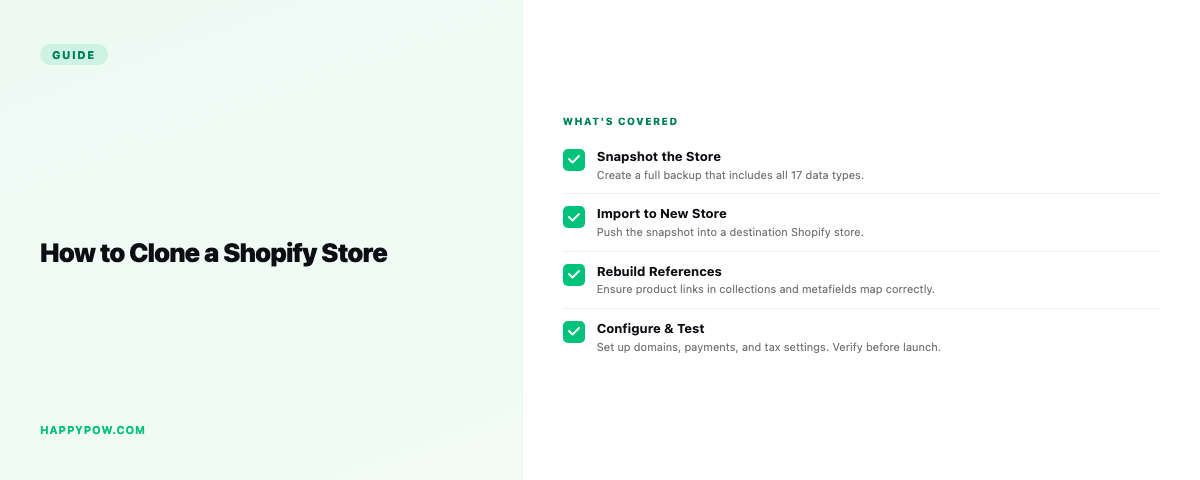
How to clone a Shopify store
Cloning copies one store's data into another: a staging store, an expansion store in a new market, or a fresh build you want to start from an existing catalog. Shopify has no one-click way to duplicate a store across stores, so you either rebuild by hand or use a backup-and-clone app.
When you want to clone or duplicate a store
- Staging: copy production into a test store to try changes safely.
- Expansion: stand up a store for another market or brand from the same catalog.
- Migration or handover: move a build between Shopify accounts.
Why CSV export is not enough
CSV gets products across, roughly, but loses the connections that make a store work: collection membership, metafields and metaobjects, theme settings, navigation, translations. References point at IDs that do not exist in the destination, so things break.
How cloning works in HappySnap
Store-to-store cloning takes a backup of the source and writes it into the destination with transforms applied: convert prices for another currency, rebrand text, and start the copies as Draft so nothing goes live by accident. IDs are remapped and references rebuilt against the destination. Cloning is available on Pro and up.
Clone vs restore
Restore writes a backup back into the same store to undo changes. Clone writes it into a different store. Same engine, different destination. For the backup side, read how to back up a Shopify store.
Next steps
See HappySnap for plans and the full feature list.