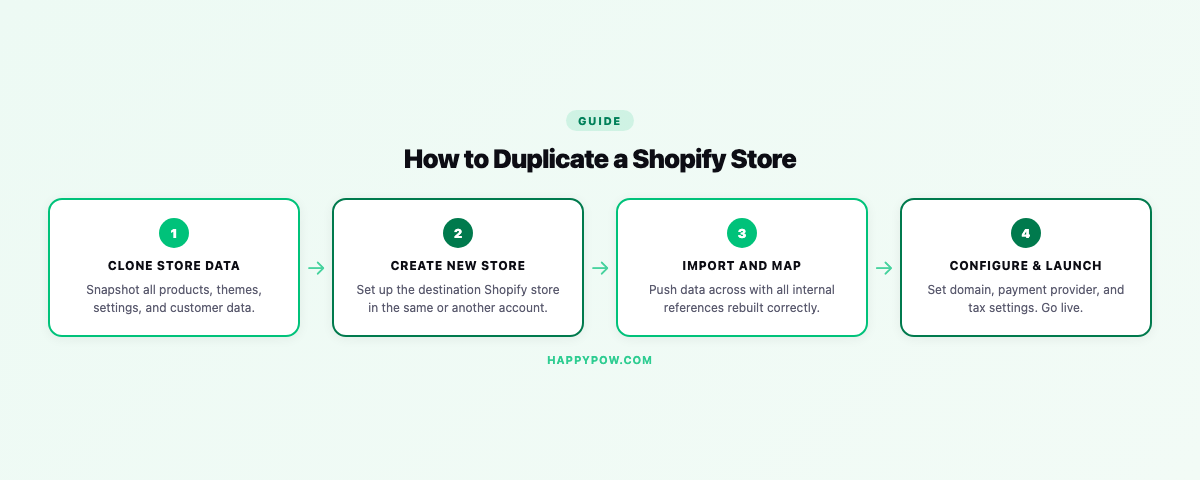
How to duplicate a Shopify store: the complete guide
You want a second store that looks and behaves like your first: a staging copy to test on, an expansion store for a new market, or a clean handover to a client. The reasonable assumption is that Shopify has a "duplicate store" button. It does not. You can duplicate a theme inside one store, but copying a whole store into another store is a manual job unless you use an app. This guide covers every route, what each one quietly loses, and how to do it without breaking your catalog.
Why duplicate a Shopify store
There are four common reasons, and they change how careful you need to be.
- Staging: a safe copy of production where you test theme changes, app installs, or big edits before they touch real customers.
- Expansion: a store for another country, currency, or brand that starts from the same catalog.
- Handover or sale: moving a finished build to a client's own Shopify account.
- Backup insurance: a parallel copy you can fall back on. For that goal specifically, a real backup is better than a manual duplicate; see how to back up a Shopify store.
What Shopify lets you copy, and what it does not
Inside a single store you can duplicate a theme from Online Store, Themes. That is the only native "duplicate" most merchants meet, and it copies the theme only, not products or settings.
Across two stores there is no one-click duplication. Shopify lets you export some objects to CSV and import them into the destination, but many settings have to be entered by hand. The official guidance is blunt about this: some store information transfers via CSV, the rest is manual.
The CSV route, and where it breaks
CSV is the free path, and for a tiny catalog it can be enough. It also has sharp edges.
- Export products, customers, and a few other objects to CSV from the source store.
- Import each CSV into the destination store.
- Re-enter everything CSV does not carry: theme settings, navigation, markets, shipping, taxes, payment config, and app setups.
What CSV loses matters more than what it keeps. It does not preserve metafields and metaobjects in any usable way, it flattens or drops the references between objects, and it has no concept of theme settings or store configuration. A product can import while the collection it belonged to, the metaobject powering its spec table, and the navigation linking to it all stay behind. You end up with rows, not a working store. For the full picture of everything a store contains, read what to back up in a Shopify store.
Duplicating with a backup-and-clone app
A backup-and-clone app treats duplication as a restore into a different store, which is the right mental model. It takes a complete, versioned copy of the source and writes it into the destination with the relationships intact.
The thing that separates a good clone from a CSV dump is reference rebuilding. When the app writes a product into the destination, it remaps the internal IDs so the product still lands in the correct collection, keeps its metafields, and points at the right metaobjects. Nothing dangles. HappySnap also starts the copies as Draft, so a half-finished clone never goes live by accident, and applies transforms like currency conversion and rebrand text for expansion stores.
Step by step with HappySnap
- Back up the source store so you have a clean, complete version to copy from.
- Choose the destination store and the data types to include.
- Apply any transforms: convert prices for the new market, rebrand text, set products to Draft.
- Dry-run the clone to see exactly what will be created in the destination.
- Run it. References are rebuilt against the destination, so collections, metafields, and metaobjects line up.
Cloning is available on Pro and up. For the conceptual difference between copying into a new store and rolling the same store back, read how to clone a Shopify store and point-in-time restore explained.
What never transfers automatically
Be realistic about the edges, whichever route you pick. These almost always need manual setup in the destination:
- Payment provider configuration and payouts.
- Shipping rates, taxes, and markets settings.
- App installations and their internal data.
- Domains, customer accounts configuration, and notifications.
A clone gets you the catalog, content, and structure. The commercial plumbing you finish by hand.
Duplicate vs clone vs restore
People use these interchangeably and then get surprised.
- Duplicate is the loose word for making a second store like the first.
- Clone writes a backup into a different store, with references rebuilt.
- Restore writes a backup back into the same store to undo changes.
Same engine in a good tool, different destination and intent.
Common mistakes
- Cloning to a live store instead of a fresh one, then overwriting real data. Start the destination empty and the copies as Draft.
- Trusting a CSV product import to recreate a store. It recreates rows, not relationships.
- Forgetting metaobjects, then wondering why theme sections render empty in the copy.
- Skipping the dry-run and discovering the mismatch after it is written.
FAQ
Can I duplicate a Shopify store for free? Partly. Theme duplication is free inside a store, and CSV export/import is free across stores, but CSV loses metafields, metaobjects, references, and settings. For a faithful copy you need a clone app.
Will a duplicate include my customers and orders? Only if you choose to include them, and that data is personal data under Shopify Protected Customer Data, so it is gated to higher plans. See how to recover deleted customers and orders.
Is a duplicate the same as a backup? No. A duplicate is a one-time copy. A backup is versioned history you can restore from. Use the right tool for the job.
Doing it cleanly
HappySnap duplicates a Shopify store by cloning a full backup into the destination, rebuilding references and starting copies as Draft. See HappySnap for plans, or start from the Shopify backup pillar.