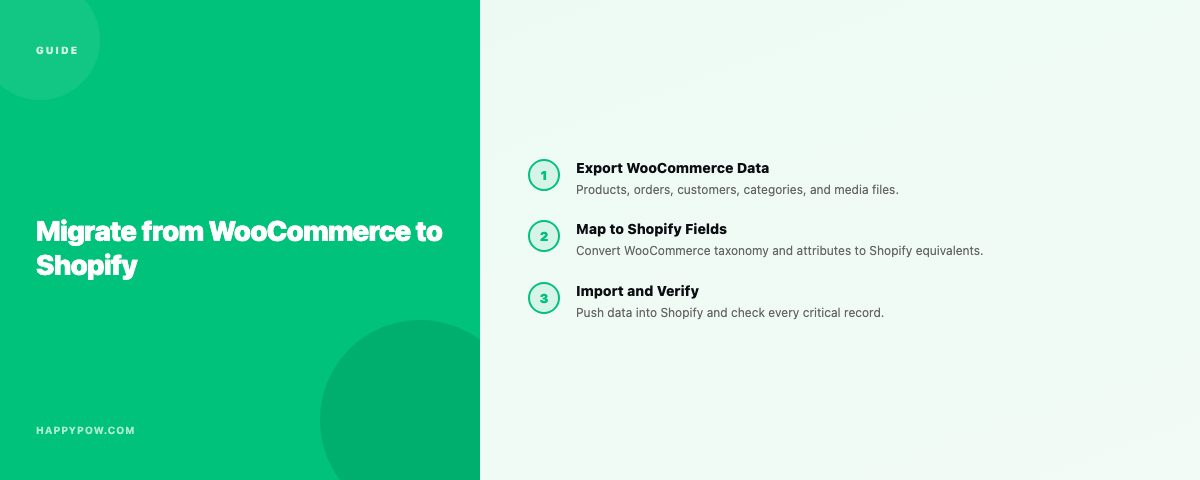
How to migrate from WooCommerce to Shopify (step by step)
Moving from WooCommerce to Shopify trades a self-hosted store you maintain for a hosted one you do not. The migration itself is where it goes right or wrong. Done in the wrong order, you lose SEO rankings, break customer logins, or cut over before the data is verified. Done carefully, customers barely notice. Here is the order that works.
Decide what actually has to move
Not everything in WooCommerce needs a new home. Sort it into three piles first.
- Must move: products with variants and images, collections or categories, customers, order history, and any content that ranks (blog posts, key pages).
- Should rebuild: the theme and storefront. Do not try to port WooCommerce's theme; rebuild on a Shopify theme so it performs.
- Can drop: abandoned plugins, stale drafts, and data you only kept because deleting felt risky.
Export from WooCommerce
WooCommerce exports products, customers, and orders to CSV from the admin, and plugins can extend what comes out. Pull clean exports and open them before you import anything. Watch for the usual mess: inconsistent variant naming, HTML in descriptions, broken image URLs, and category paths that will not map one to one.
Map the data model to Shopify
This is the step people skip and regret. WooCommerce and Shopify do not model a store the same way.
- WooCommerce categories and tags become Shopify collections and tags. Decide which is which before importing.
- Custom fields and ACF data become Shopify metafields and, where structured, metaobjects.
- Product attributes become Shopify options and variants, capped at the platform's variant limits.
Write the mapping down. A migration without a mapping is a guess that imports cleanly and behaves wrongly.
Import into Shopify
Import in dependency order so references resolve.
- Products and variants first, with images.
- Collections, then assign products to them.
- Customers, then order history.
- Metafields and metaobjects, then wire the theme to read them.
Migration apps (for example Matrixify) automate much of this and handle larger catalogs better than hand-rolled CSV. Whatever you use, import into a store you can throw away first, verify, then do it for real.
Keep your SEO: redirects
This is the part that protects your traffic. Your WooCommerce URLs are indexed; Shopify uses a different URL structure. Without redirects, every ranking page 404s and the rankings evaporate.
- Map every important old URL to its new Shopify URL.
- Set up 301 redirects for products, categories, and content.
- Keep the redirect list; you will reference it for months.
Do this before launch, not after, and submit a fresh sitemap once you cut over.
Rebuild the theme, do not port it
Rebuild the storefront on a Shopify theme rather than recreating the WooCommerce look pixel for pixel. You get speed, app-block compatibility, and a theme that will not fight the platform. Move the brand, not the markup.
Back up before you cut over
The riskiest hour of a migration is the cutover: DNS flips, the new store goes live, and any data problem is now in production. Take a full backup of the Shopify store at the moment it is ready, before you point the domain at it. If the launch surfaces a bad import, you restore to the known-good version instead of debugging live. A manual checkpoint right before cutover is exactly what this is for; see how to back up a Shopify store and point-in-time restore explained.
Verify before you point the domain
Run the checklist on the new store while the old one is still live:
- Spot-check products, variants, prices, and images against the source.
- Click through collections and navigation.
- Confirm metafields render in theme sections.
- Test checkout end to end with a real transaction.
- Confirm a sample of redirects resolve.
Only when this passes do you flip DNS.
Common mistakes
- Importing before mapping the data model, then living with wrong collections forever.
- Launching without 301 redirects and watching organic traffic fall off a cliff.
- Porting the WooCommerce theme instead of rebuilding, then fighting performance.
- No backup at cutover, so a bad import becomes a live incident.
FAQ
How long does a WooCommerce to Shopify migration take? A small catalog can move in days; a large one with custom fields and heavy SEO takes weeks, mostly in mapping, redirects, and verification, not the import itself.
Will I lose my rankings? Only if you skip redirects. With a complete 301 map and a fresh sitemap, rankings usually recover within weeks.
Can I migrate customers and orders? Yes, though customer passwords do not transfer and personal data needs careful handling. Plan a password-reset prompt at launch.
After the move
Once you are on Shopify, put a real backup routine in place from day one, because the platform has no native rollback. Read the Shopify backup pillar and try HappySnap to protect the store you just migrated.